Overview of Three Sharing Modes
| Mode | Also Known As | Description |
|---|---|---|
| Proxy Sharing Mode | Allow LAN | Devices forward requests through proxy software |
| Gateway Sharing Mode | Bypass Gateway, Transparent Proxy | Devices point their gateway to the proxy host |
| Routing Sharing Mode | WiFi Hotspot | Host creates an independent subnet and assigns IPs |
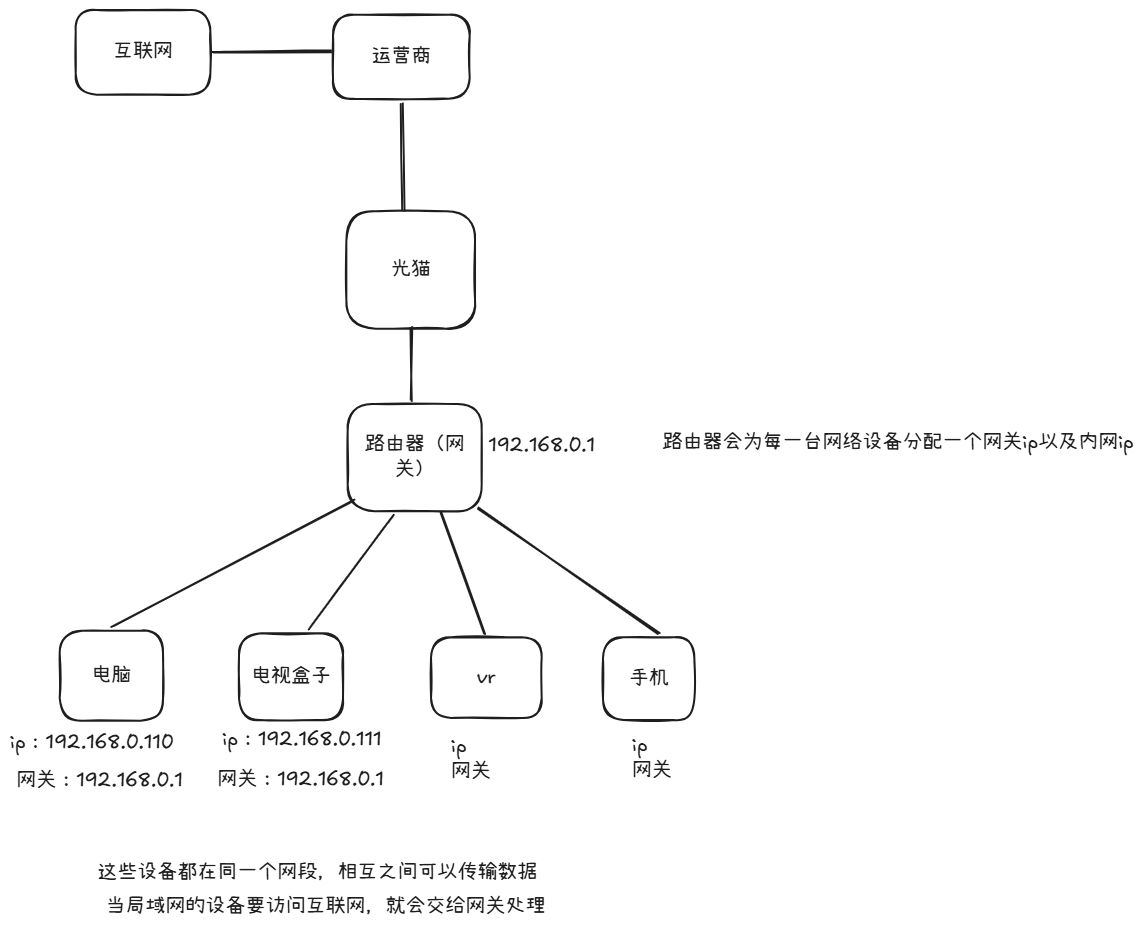
Overview diagram:
Proxy Sharing Mode
How It Works
Suppose your computer is running Clash or V2Ray with proxy sharing enabled. You can set up your phone to route its requests through your computer. The flow is as follows:
- Phone access request → Computer (processed by V2Ray/Clash) → Gateway (Router) → Internet
- Internet response → Gateway (Router) → Computer → Phone
This is how proxy sharing mode works.
Example: Phone Accessing the Internet Through Computer Proxy
-
In V2Ray, enable LAN connections to see the SOCKS5 and HTTP ports
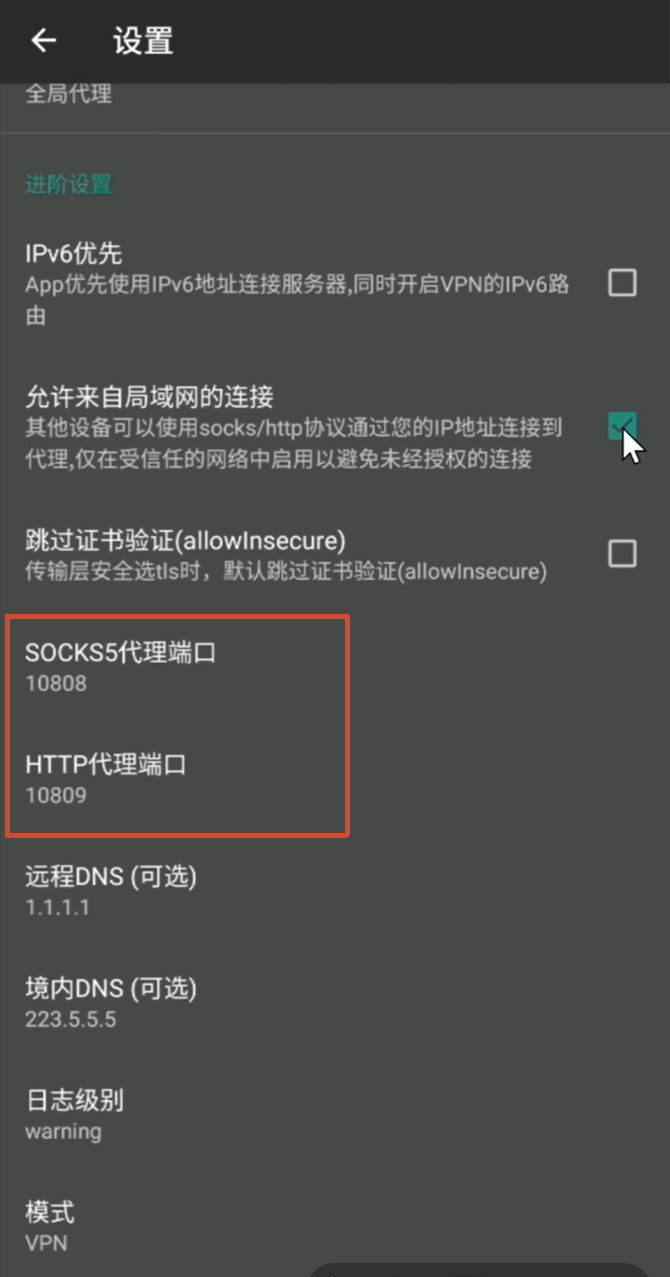
The computer uses HTTP proxy, so port 10809 is used
-
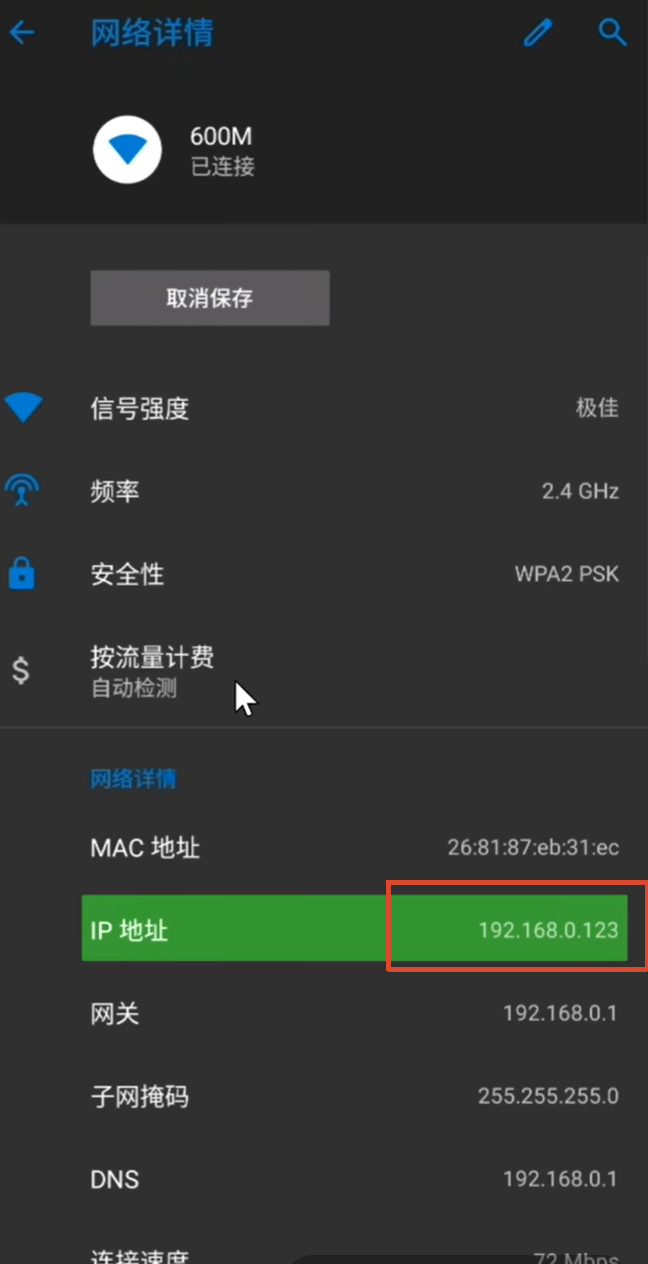
Check the WiFi connection info on your phone to get its IP address
-
Enter the phone’s IP and port in your computer’s proxy settings
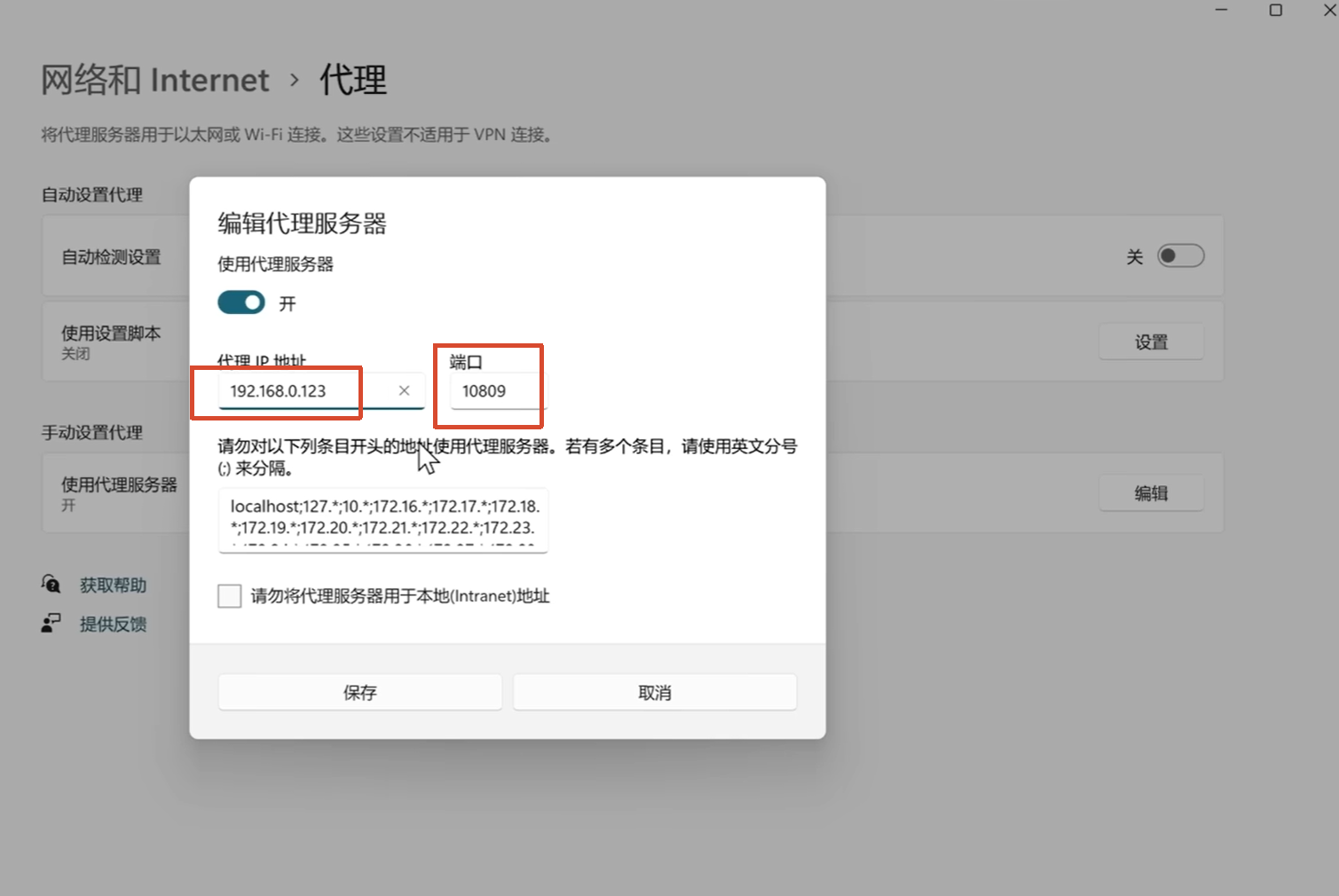
Now your computer’s requests will be handled by your phone—your computer can access Google. If you turn off the phone’s VPN, the computer loses access too.
Example: Computer Proxying Phone Requests (Reverse)
The reverse setup—using your computer to proxy your phone’s requests—works the same way:
-
Open V2Ray settings and allow LAN connections
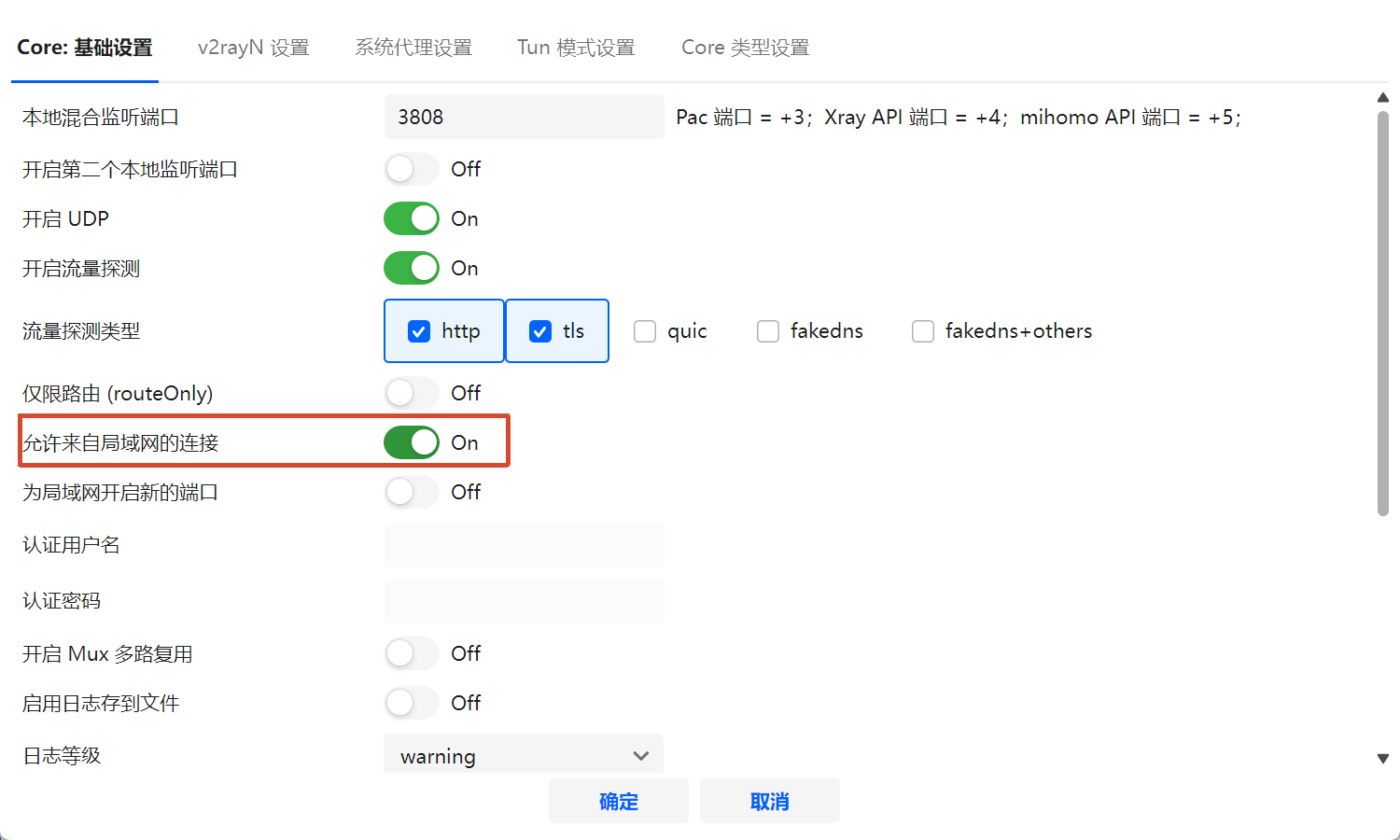
-
The proxy port is displayed in the lower-left corner
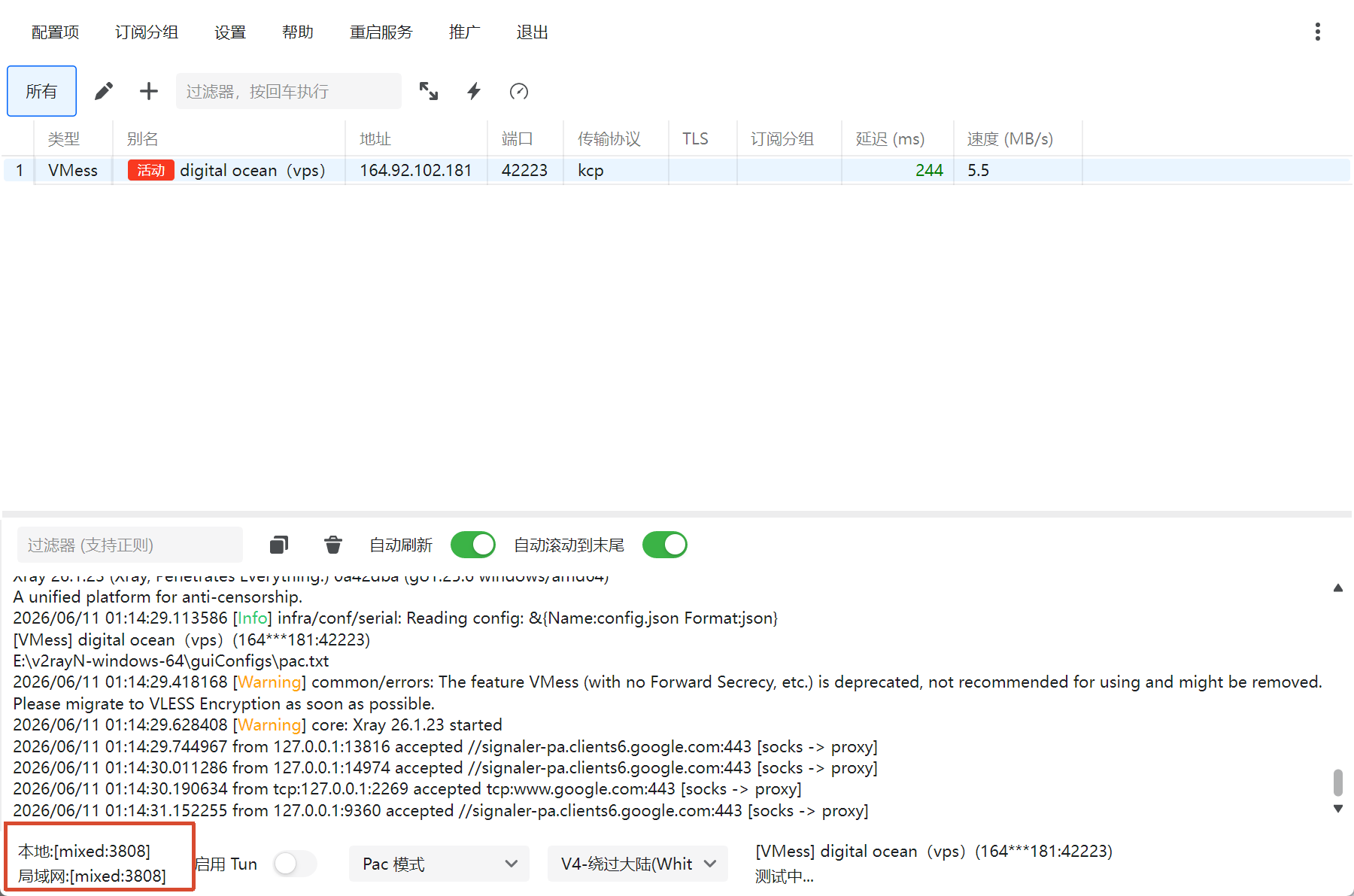
-
Go to your phone’s WiFi proxy settings, enter the computer’s IP as the server address and the port shown in the screenshot
About UDP Proxy
Note: The system proxy configured in phone settings is typically an HTTP proxy, which does not support UDP transport. To proxy UDP traffic, you need a SOCKS proxy. Since system proxy settings don’t support SOCKS, you’ll need a third-party VPN tool.
Create a SOCKS proxy in V2Ray on your phone:
- Server: Enter your computer’s IP address
- Port: Enter your computer’s V2Ray SOCKS port
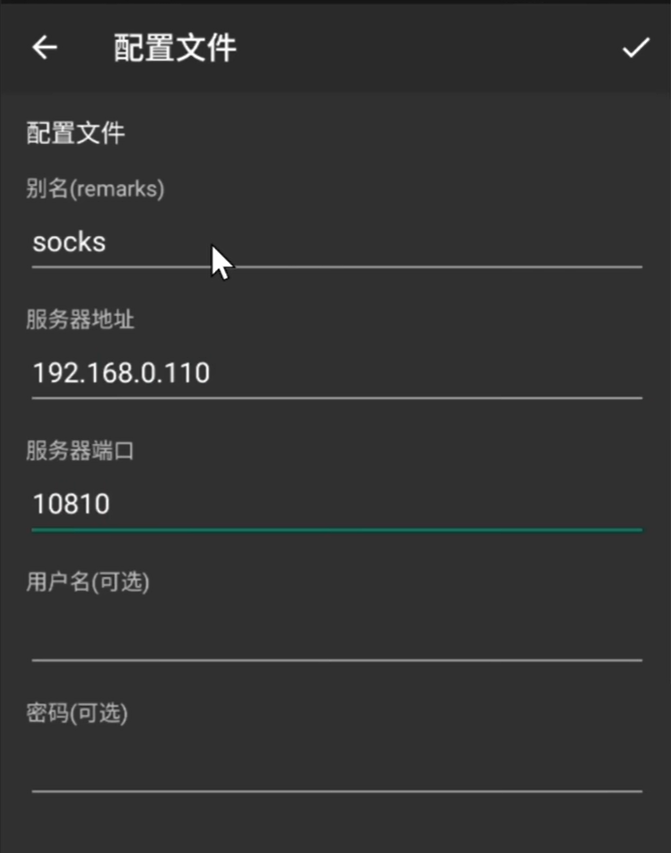
This allows UDP data to be proxied. However, whether UDP proxying actually works depends on whether your server node supports UDP.
Pros and Cons
Pros:
- Almost all proxy tools support enabling proxy sharing mode
Cons:
- Each network device needs to be configured individually
- Some devices (e.g., TV boxes) don’t support proxy configuration, making this method unusable for them
Gateway Sharing Mode
How It Works
Gateway sharing mode is also called bypass gateway, transparent proxy, or transparent gateway.
Typically, the router assigns IPs to each device. In gateway mode, the router assigns the computer’s IP to every device as their gateway.
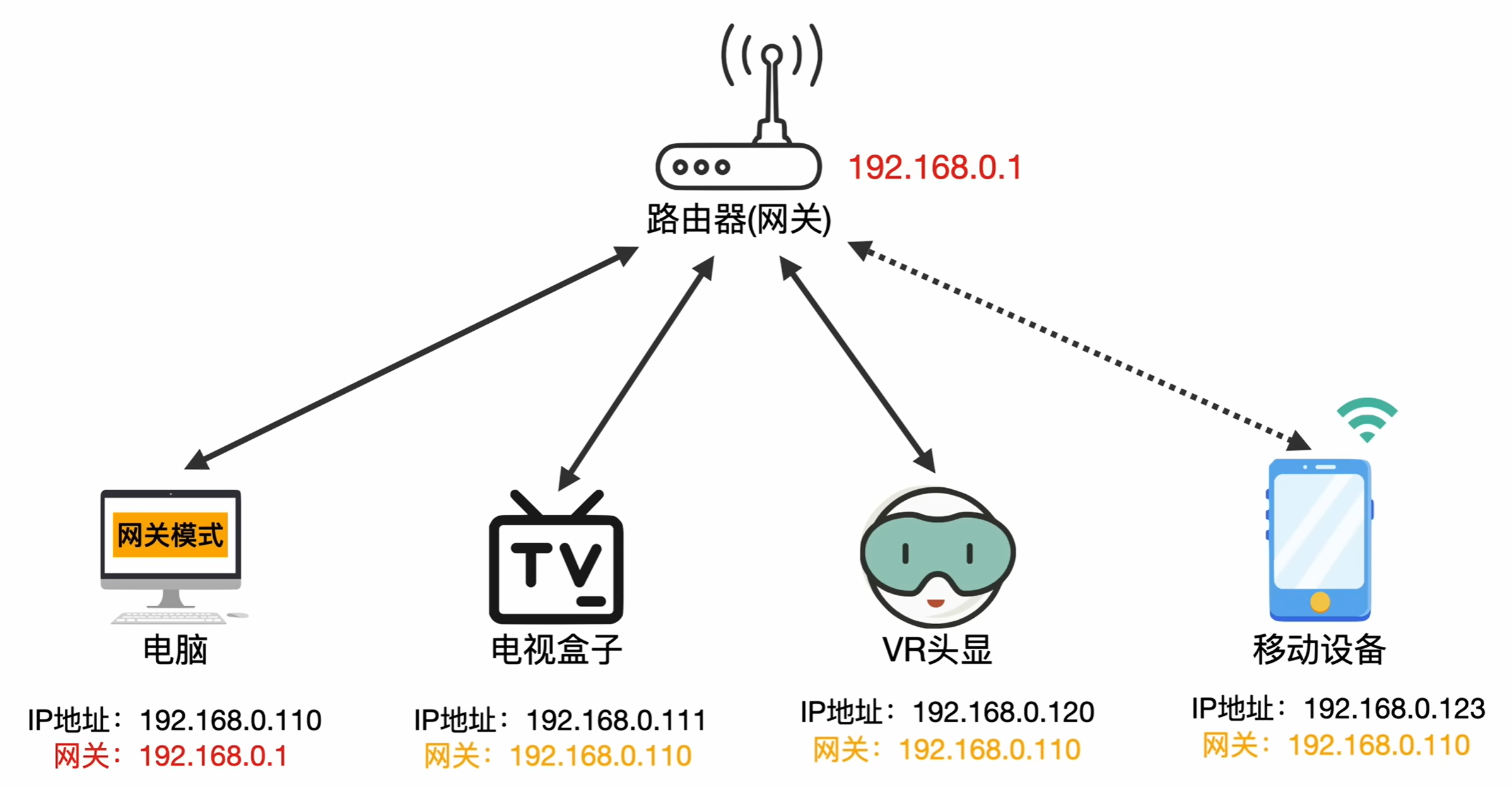
Workflow: When your phone wants to access Google → data is sent to the gateway (the computer) → the computer processes the data and forwards it to the router
Key point: All internet traffic from devices on the LAN goes through the gateway.
Pros and Cons
Advantages:
- Flexible configuration—you can set the gateway individually per device, or have the router change the gateway for all devices on the LAN at once
- The biggest advantage: a gateway-level system proxy can intercept all traffic on the system. Even if some applications don’t use a proxy or certain devices don’t support proxy settings, any internet access still passes through the gateway. The devices themselves don’t even know they’re being proxied
- This is why it’s called transparent proxy or transparent gateway
Disadvantages:
- Not all operating systems support it. Windows does not support this mode; macOS and Linux do
Implementation via Linux Virtual Machine
Since Windows doesn’t support gateway sharing mode, you can install a Linux virtual machine to achieve it.
- Use bridged networking for the VM (same LAN as the host)
- Enable the root user
- Enable IP forwarding and TUN mode:
1sysctl -w net.ipv4.ip_forward=1 - Go to your computer’s IP settings and set the default gateway to the Linux VM’s IP address
Limitation: This won’t work without a LAN.
Routing Sharing Mode
How It Works
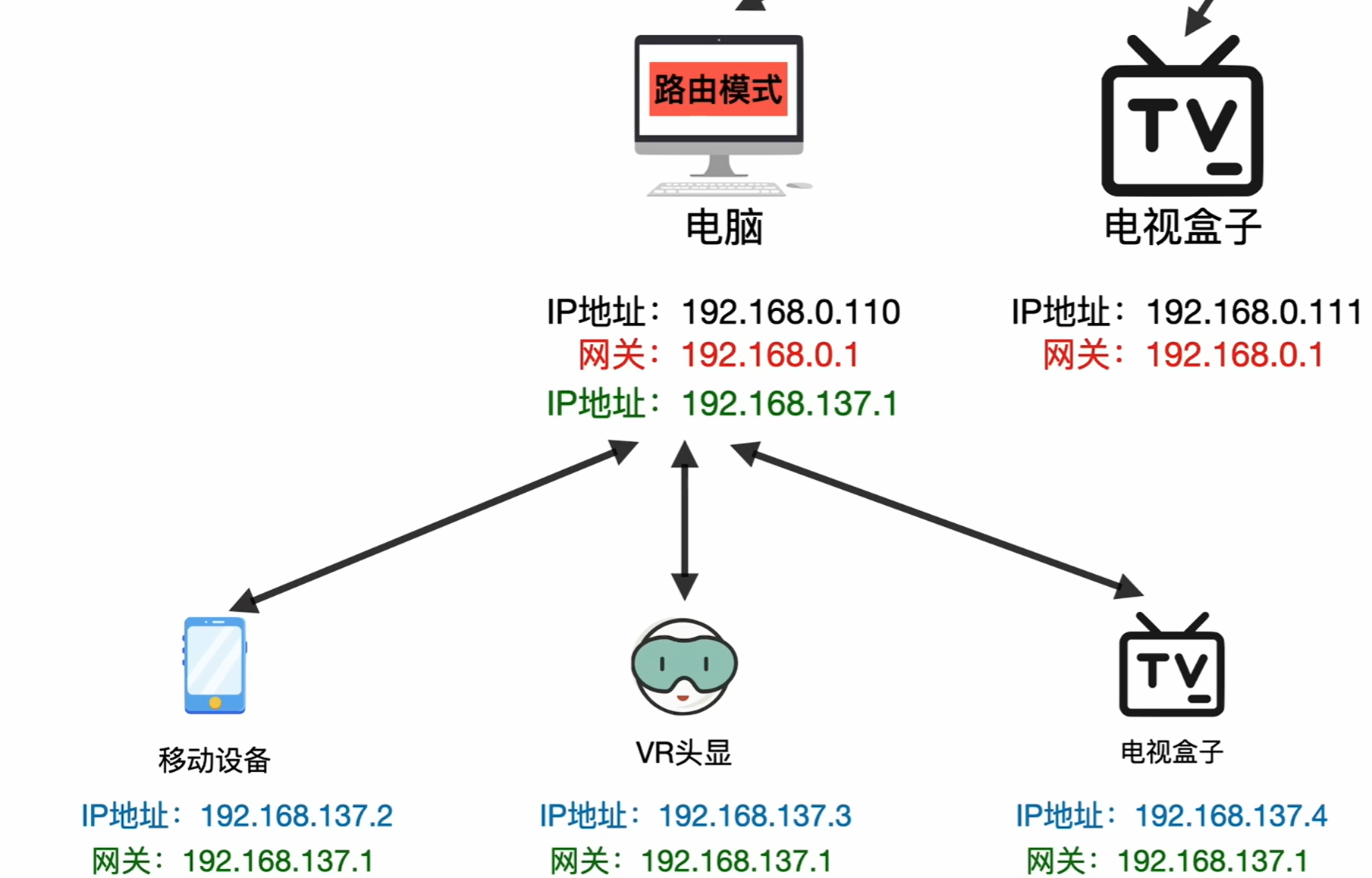
When routing sharing mode is enabled, the computer creates an independent subnet (shown as 192.168.137.1 in green in the diagram). When other devices connect to this computer, the computer assigns them IPs, gateways, and other network info. The computer essentially takes over the router’s job—hence the name routing sharing mode.
Pros and Cons
Pros:
- Many advantages, widely applicable
Cons:
- Adds an extra NAT layer, requiring some performance overhead
- Creates two different LAN segments that cannot communicate with each other by default
- Most phones don’t support sharing VPN networks through routing mode without Root access
Configuration on Windows
Enabling routing sharing mode on Windows requires two network interfaces. Most computers have only one, so you may need to purchase a USB Ethernet adapter to add an extra port.
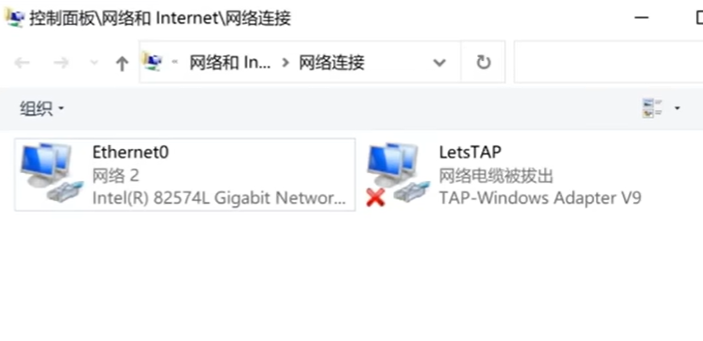
Setup steps:
- Assume the first NIC connects to your LAN and the second is idle
- Enable TUN mode
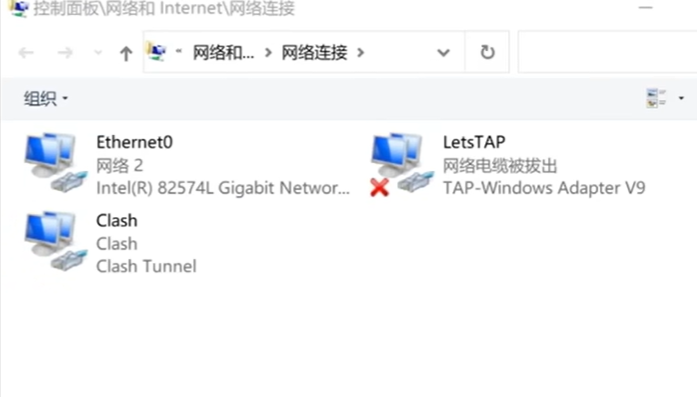
- Clash will create a virtual network adapter
- Right-click the virtual adapter → Properties → Sharing → Select “Allow other network users…” and choose the idle NIC
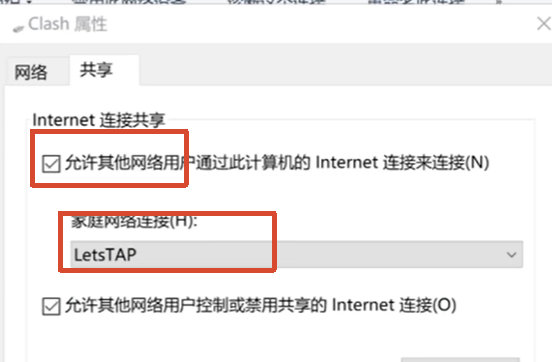
- This creates a new subnet, sharing Clash’s proxy environment with the idle NIC
Use Cases
This idle NIC can be connected to another computer via an Ethernet cable, and that computer can access the internet through the proxy without any configuration. A more common scenario is connecting it to a wireless access point (AP) to broadcast WiFi.